End-user guide

How to use Ledge

This guide is based on the product documentation. It follows the same path most people take in the app: set up the basics, review Dashboard, record activity, track balances with people, and keep your data under control.

Start here
Choose a base currency, add your first account, and record a few real transactions.
Build habits
Use Dashboard regularly, then add people, budgets, goals, and recurring rules when needed.
Stay portable
Import, export, and backup tools help keep your records accessible over time.
Guide reference gallery

Dashboard, Transactions, People
Ledge dashboard screenshot
Dashboard
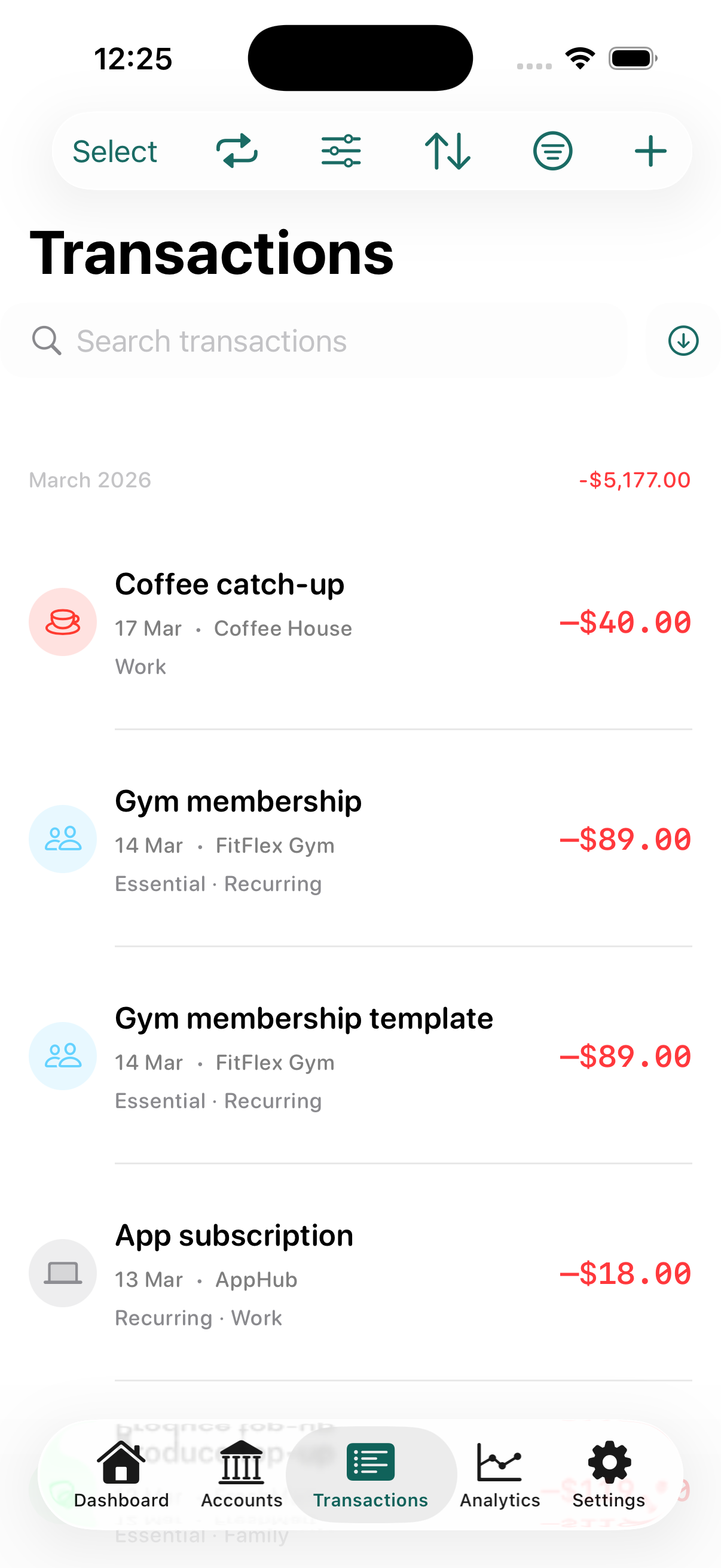
Ledge transactions screenshot
Transactions
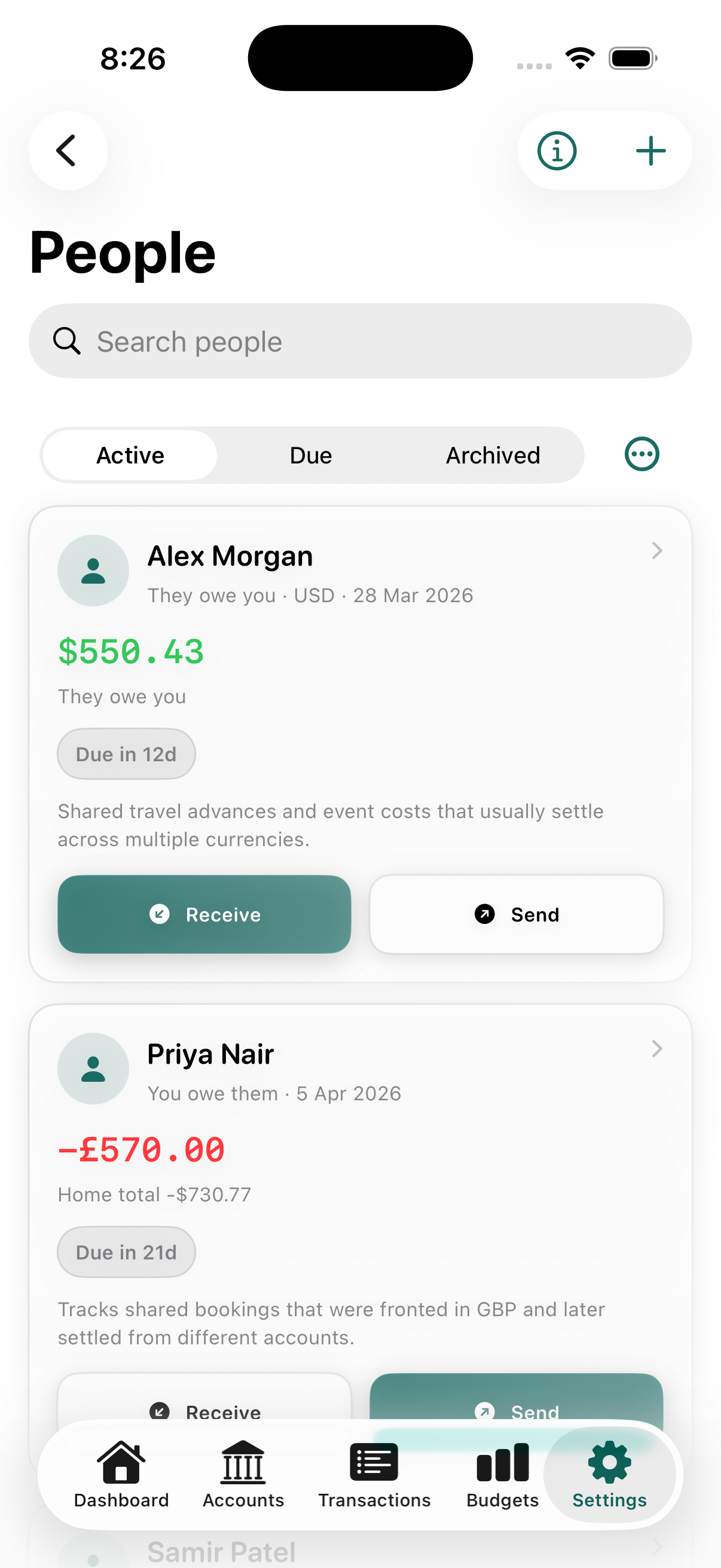
Ledge people list screenshot
People

01 / overview

What you can do in Ledge

  • See your financial position on a dashboard.
  • Track multiple kinds of accounts in one ledger.
  • Record income, expenses, transfers, and recurring activity.
  • Organize transactions with categories, payees, tags, and People balances.
  • Track money owed between you and other people.
  • Create budgets, save toward goals, and review analytics and reports.
  • Import, export, back up, and restore your data.

Good mental model

Think of Ledge as five everyday workflows: Dashboard, Accounts, Transactions, People, and Planning. The rest of the app helps those workflows stay clear, reviewable, and portable over time.

02 / setup

Get started

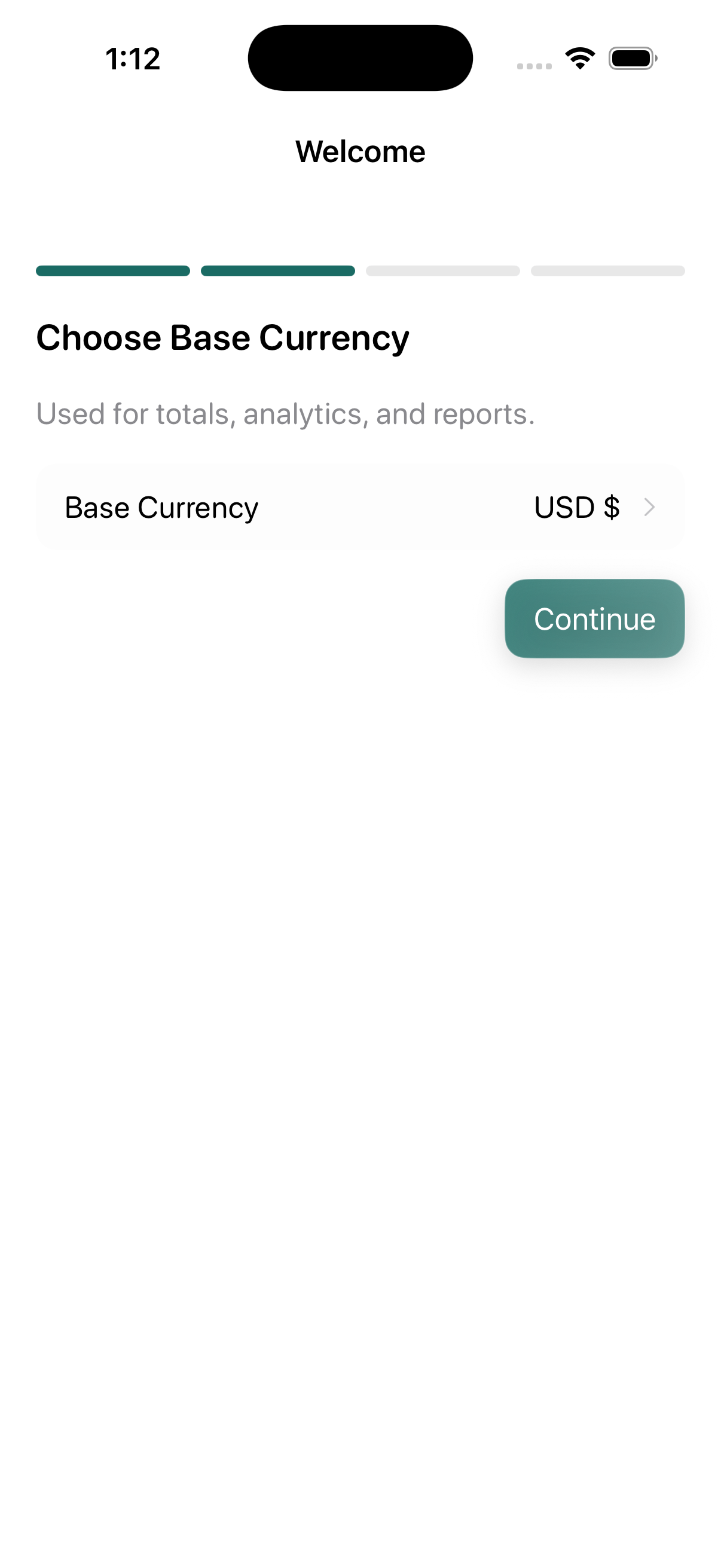
Begin with your base currency. It is used for totals, analytics, reports, and many dashboard summaries. During onboarding, your first account uses that selected base currency so setup stays simple.

  1. Choose your base currency for totals, analytics, reports, and many dashboard summaries.
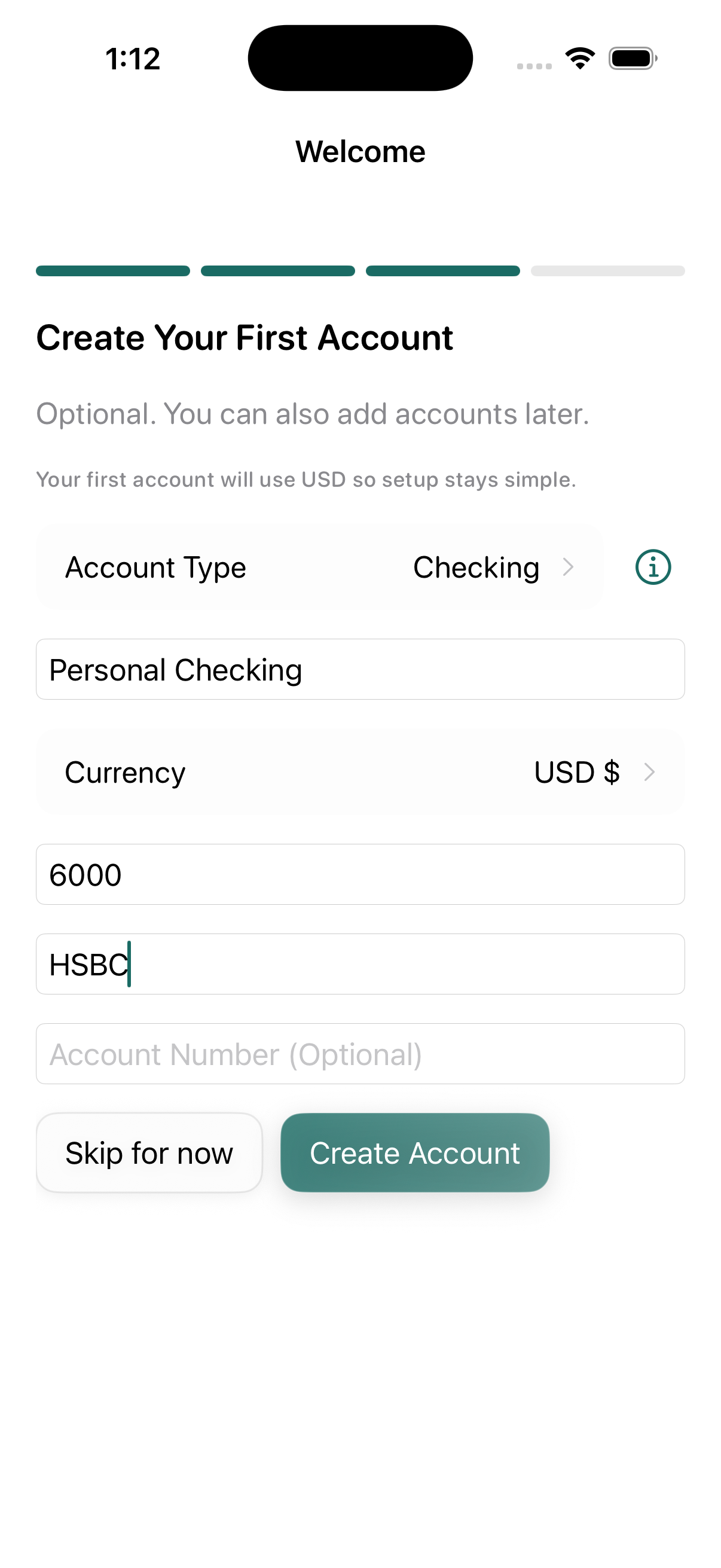
  2. Optionally create your first account. During onboarding, it uses the base currency you already selected.
  3. Start with your main spending account, savings, any credit or loan accounts you want included, a few recent transactions, one or two budgets, and any people you regularly reimburse or settle with.

The onboarding flow is intentionally kept simple, with a small set of everyday account types for the first account step. You can add more accounts or edit details later.

03 / dashboard

Dashboard

Dashboard screenshot
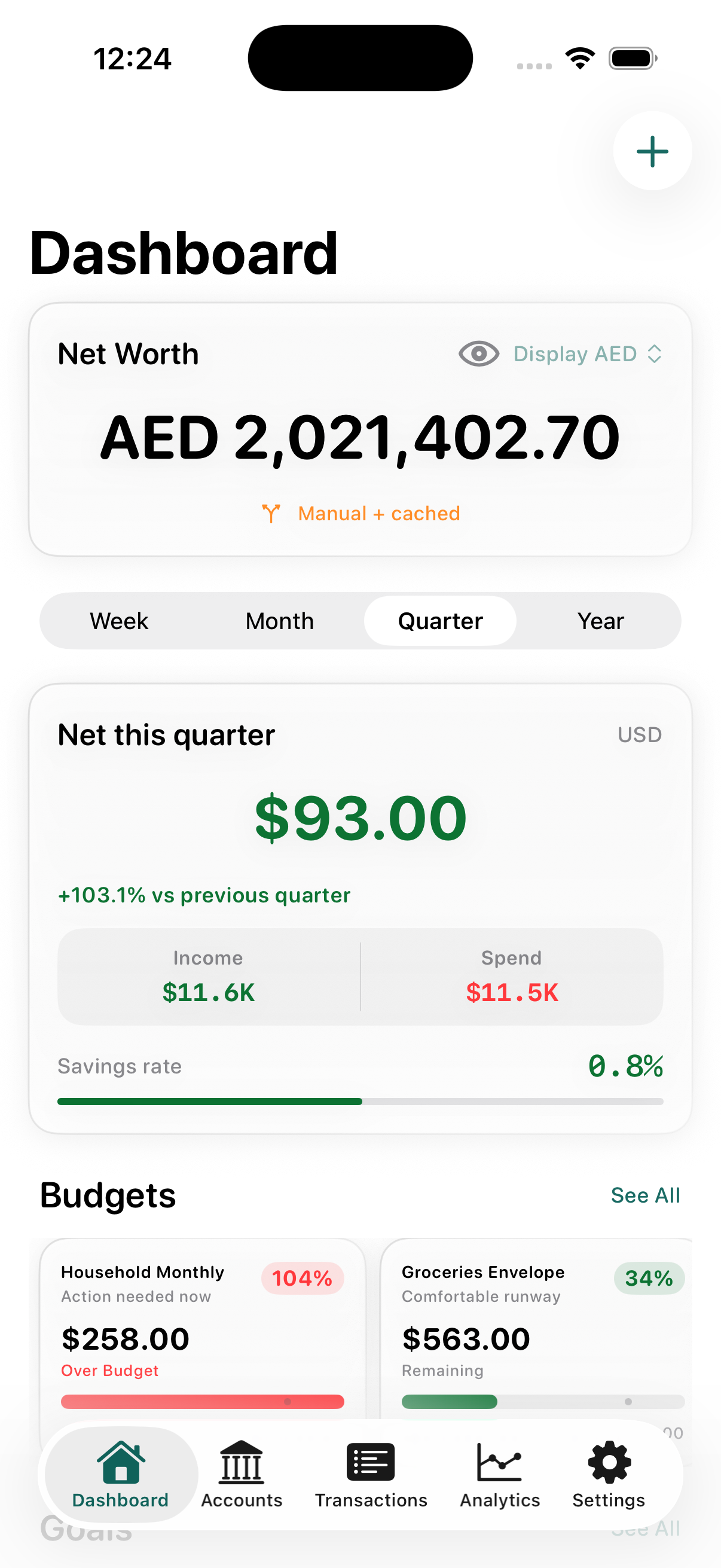
Dashboard / net worth, income, spending, goals, and People balances

Dashboard is the quickest way to review your finances. Depending on your data, it can show net worth, net cash flow, income and spending totals, savings rate or deficit ratio, budget snapshot, goals snapshot, People balances, upcoming activity, and recent transactions.

  1. Open Dashboard.
  2. Choose a period such as Week, Month, Quarter, or Year.
  3. Review summary cards first.
  4. Open budgets, goals, transactions, or People balances when something needs attention.

04 / recorded activity

Accounts and transactions

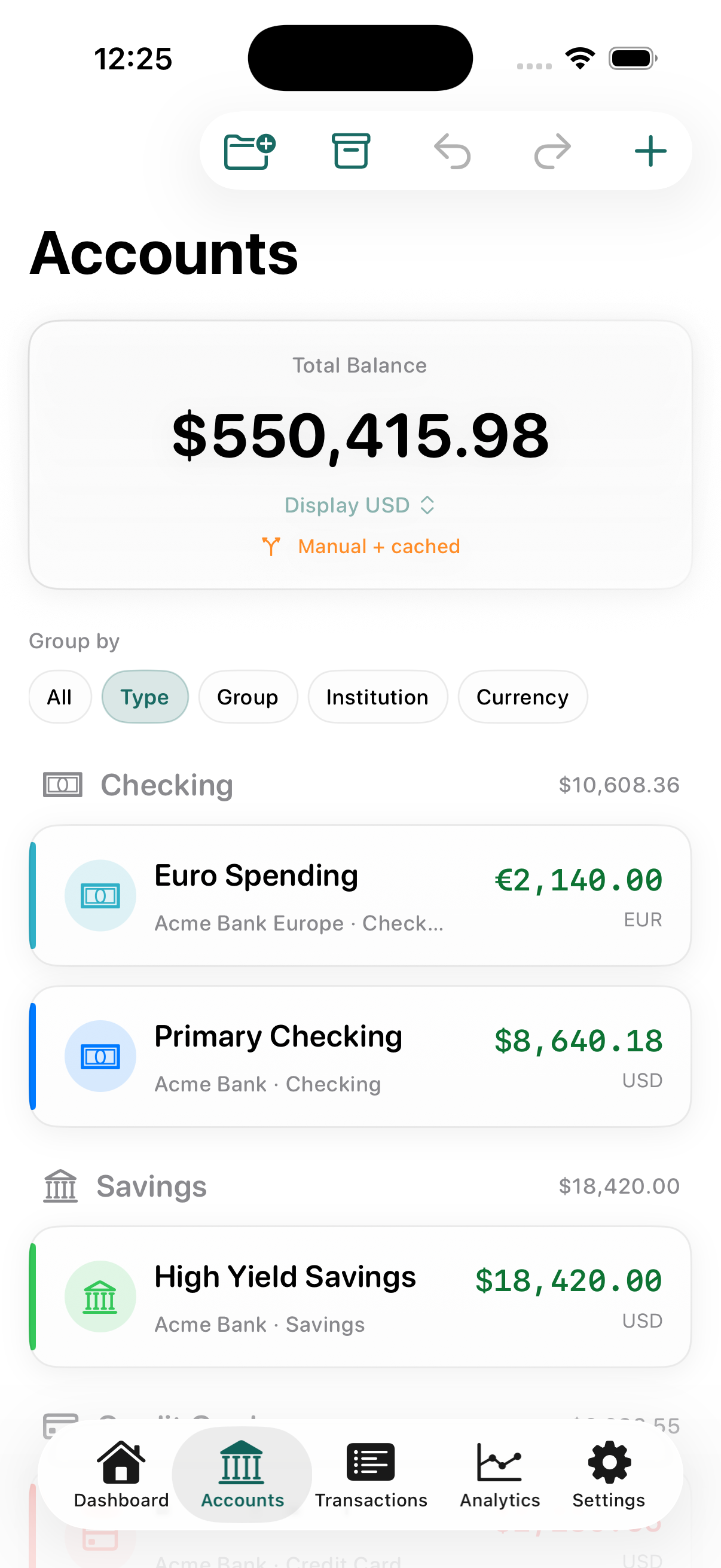
Accounts

Ledge supports checking, savings, credit card, cash, loan, term deposit, fixed asset, and brokerage accounts. You can group accounts by type, group, institution, or currency, archive accounts you no longer use, and restore them later.

Transactions

Record expenses, income, and transfers with the amount, date, account, category, and optional payee, tags, note, or attachments. Use filters to narrow activity by account, category, payee, tag, date range, currency, type, or status.

05 / people

People

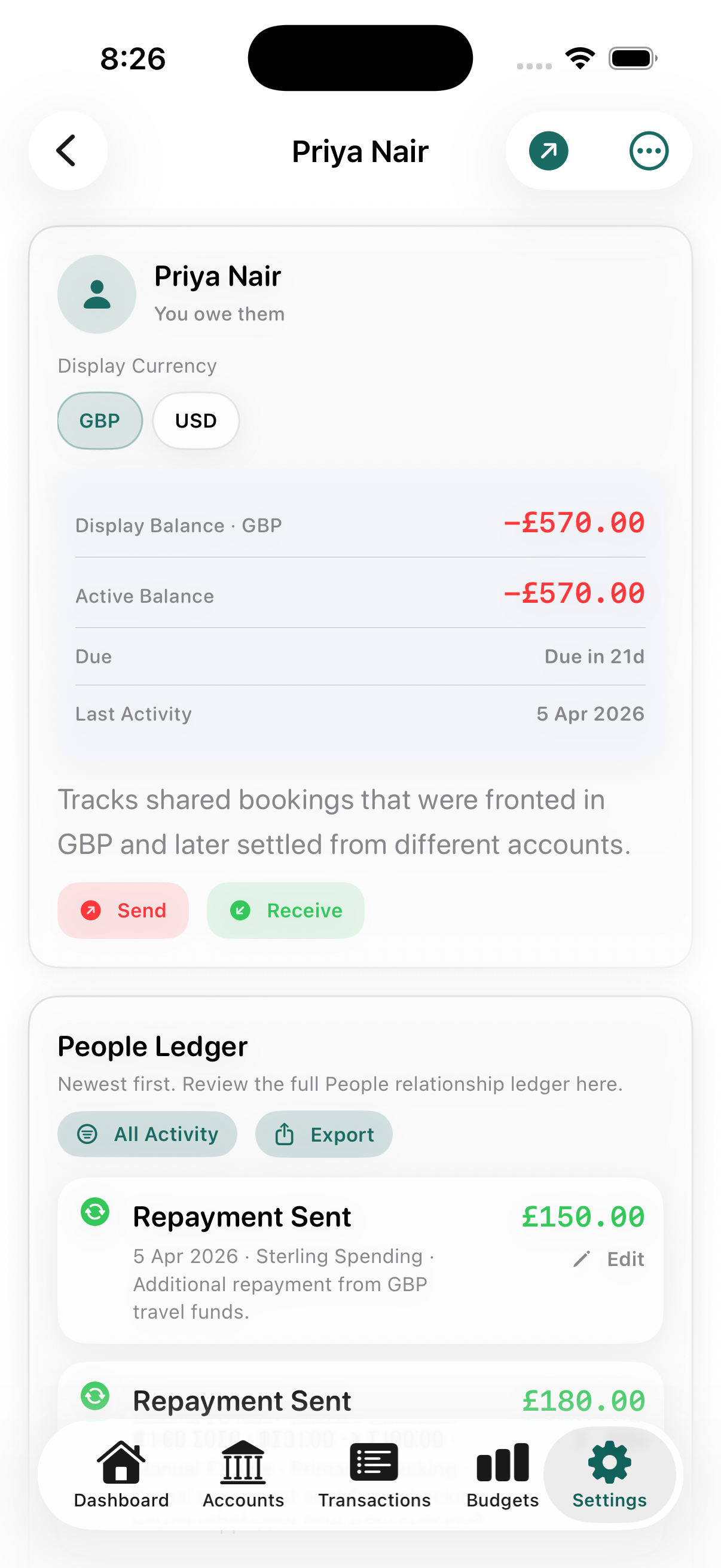
People is a primary workspace for tracking money between you and specific people. Use it when a balance still matters after the transaction, such as reimbursements, repayments, shared costs, or money you lent or borrowed.

Payees vs People

Use Payees for transaction labels and reporting. Use People when the relationship needs its own balance, due date, settlement history, or statement export.

What it supports

Track what is owed to you, what you owe, due and overdue items, repayments, settlements, archived relationships, and statement exports when you need a clearer record.

06 / planning

Budgets, goals, recurring rules, and cash flow

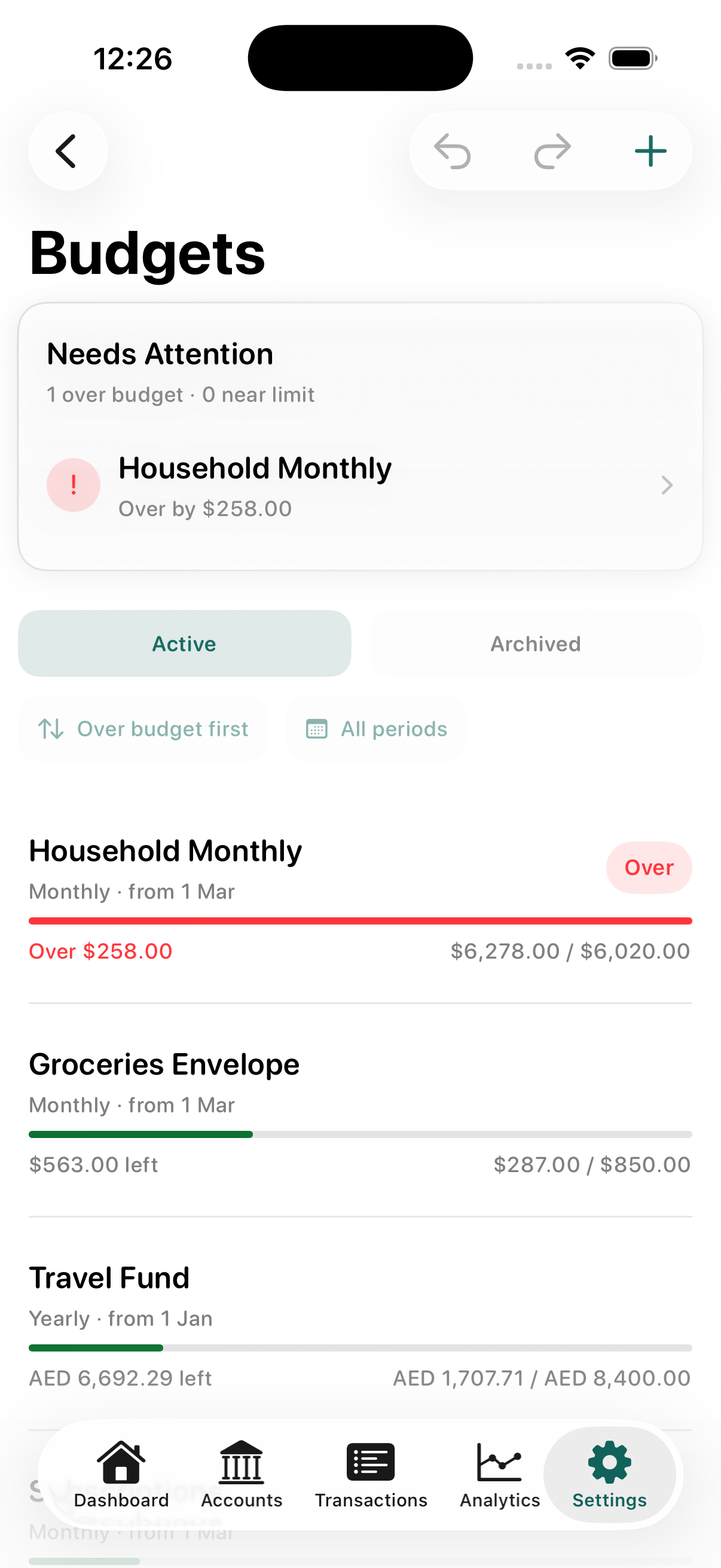
Budgets

Create budgets with an amount, currency, period, selected categories, warning thresholds, and optional rollover.

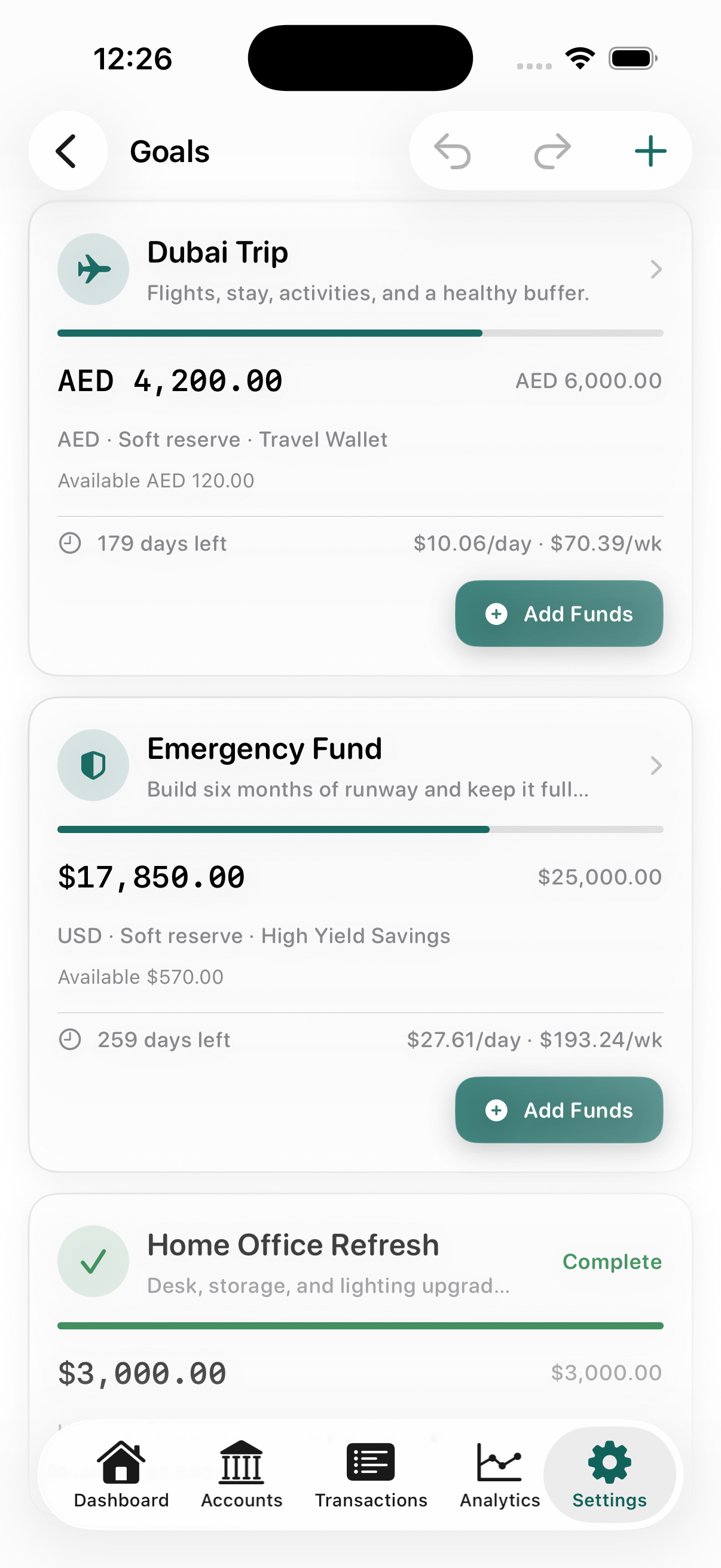
Goals

Set a target amount, optional deadline, linked account, reserve behavior, and recurring contribution schedule.

Recurring rules

Build repeating expense or income patterns with daily, weekly, monthly, or yearly scheduling, then pause, resume, skip, duplicate, or delete them later.

07 / review

Analytics and reports

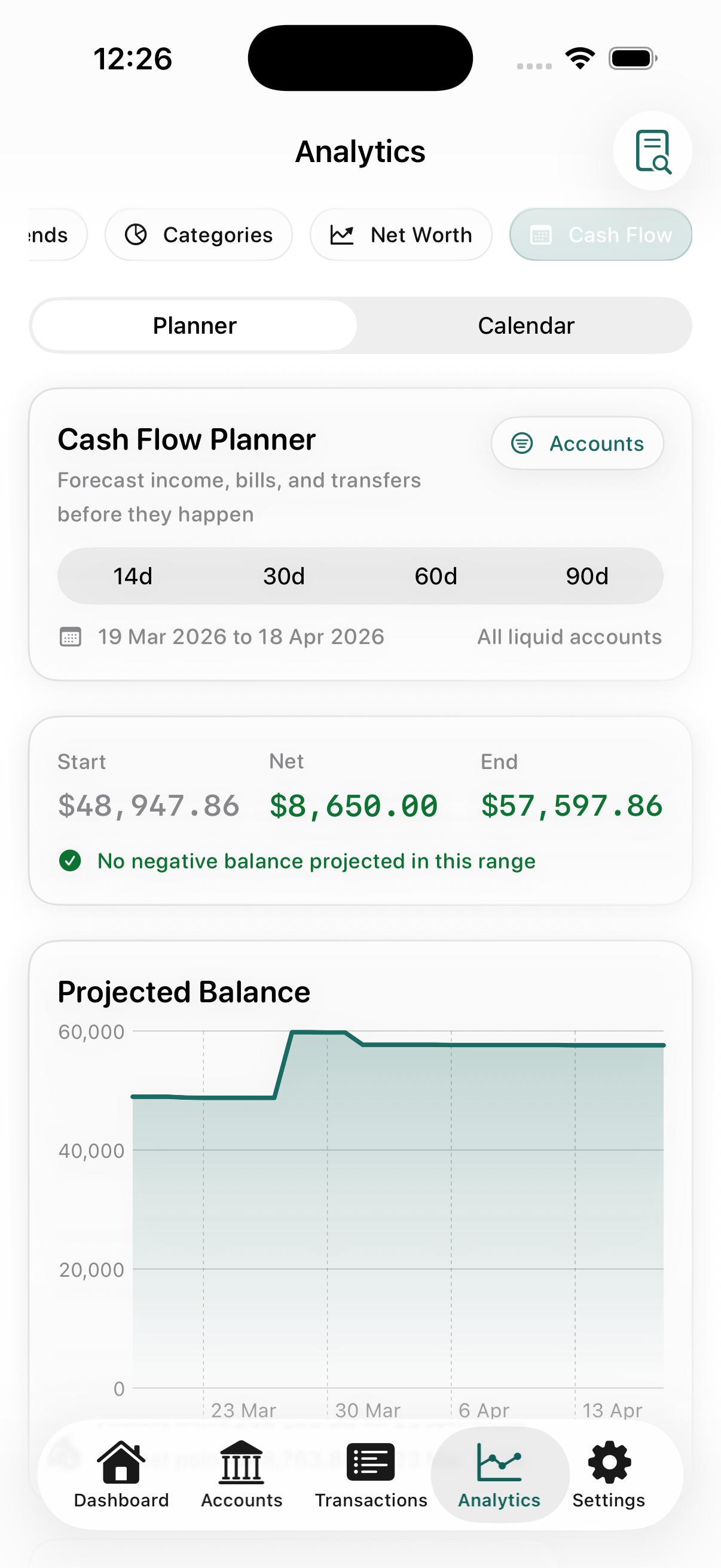
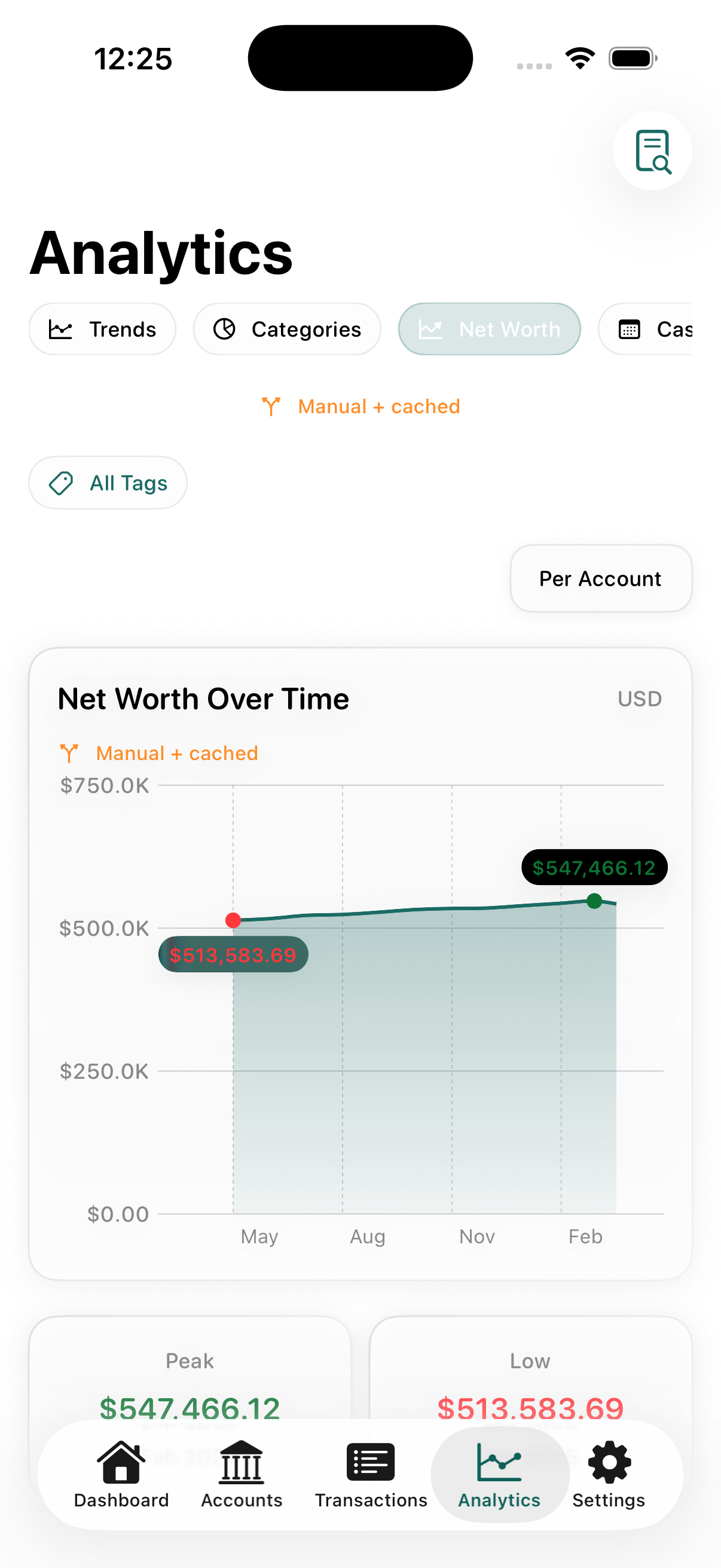
Analytics helps you move from entries to patterns. Review income versus expenses, category concentration, net worth over time, People exposure, and projected cash flow. On iPhone and iPad, Analytics includes Overview, Spending, Net Worth, and Cash Flow.

08 / control

Privacy, import, export, and backups

Privacy

You do not need a separate Ledge account. Your data stays on device, or in private iCloud storage if sync is enabled. App Lock uses device security. Live exchange-rate refresh is optional, and manual rates remain available.

Data tools

Import supported formats such as CSV, OFX/QFX, and QIF. Review mappings and duplicate checks before import. Export CSV or PDF when needed. Create backups with or without attachments, and restore from backup files if necessary.

09 / settings

Settings

  • General settings cover base currency, default account, special account types, first day of week, exchange rates, and notifications.
  • Navigation settings let you choose pinned iPhone tabs and reorder the tab bar. Accounts, Transactions, and People are the default middle tabs.
  • Security settings control App Lock, unlock method, and lock timeout.
  • iCloud settings manage per-device sync, status, and diagnostics.
  • Appearance settings control color scheme and accent color.
  • Data settings include Import Transactions, Attachment Storage, and Export.
  • Notifications can include budget alerts, bill reminders, daily reminders, weekly summaries, and low-balance alerts.

10 / practical workflows

A few ways to begin

Build your daily ledger

  1. Add your main accounts.
  2. Add your most common categories.
  3. Record a few real expenses and income entries.
  4. Add payees for recurring merchants.

Add control to spending

  1. Create budgets for your biggest expense areas.
  2. Turn on budget alerts.
  3. Review Dashboard every few days.
  4. Use Analytics to see what is changing.

Stay ahead of bills

  1. Create recurring rules for rent, utilities, subscriptions, and salary.
  2. Turn on bill reminders.
  3. Review cash flow regularly.
  4. Watch for accounts under pressure before due dates arrive.

Save toward something important

  1. Create a goal.
  2. Link it to the account that will fund it.
  3. Choose reserve behavior.
  4. Add recurring contributions if they help.

Track money with people

  1. Add the person in People.
  2. Record whether you sent money, received money, borrowed, lent, or expect reimbursement.
  3. Add a due date when there is a real settlement deadline.
  4. Review the Due scope and Dashboard People tile.

Keep your data portable

  1. Export when you need a shareable record.
  2. Create backups regularly.
  3. Include attachments when the archive matters.
  4. Restore from backup if you ever need to recover.

11 / more help

Read the FAQ

FAQ

Common questions

Find answers about setup, currencies, People balances, transfers, backups, iCloud sync, devices, and everyday use.

Open the FAQ

Download

Download options

View App Store links for iPhone and iPad, and see Mac availability status in one place.

Open download options